-
Using the command line, remove any git remotes currently configured for the repository.
# Show existing remotes $ git remote -v > origin git@git-server/octocat/hello-world.git (fetch) > origin git@git-server/octocat/hello-world.git (push) # Remove existing remotes $ git remote remove origin -
In the repository bar, click Publish repository.
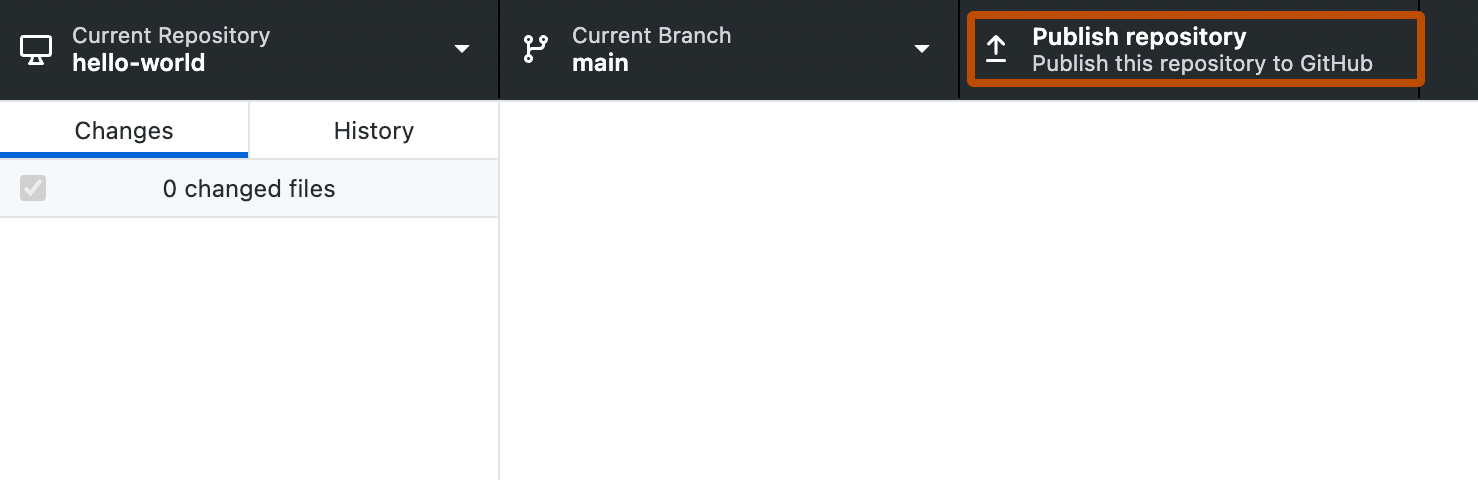
-
In the "Publish Repository" window, in the "Name" field, type the desired name of the repository or use the default current local repository name.
-
Optionally, add a description for the repository.
-
Optionally, to publish a public repository, deselect Keep this code private.
-
Select the "Organization" dropdown menu, then either click the organization where you want to publish the repository, or, to publish the repository to your personal account, click None.
-
Click Publish Repository.
This version of GitHub Enterprise Server will be discontinued on 2026-08-25. Discontinued releases are not supported. No patch releases will be made, even for critical security issues. For better performance, improved security, and new features in GitHub Enterprise Server, see Overview of the upgrade process. For help with the upgrade, GitHub Enterprise Support.
Adding an existing project to GitHub using GitHub Desktop
You can add an existing Git repository to GitHub using GitHub Desktop.
