This version of GitHub Enterprise Server will be discontinued on 2026-08-25. Discontinued releases are not supported. No patch releases will be made, even for critical security issues. For better performance, improved security, and new features in GitHub Enterprise Server, see Overview of the upgrade process. For help with the upgrade, GitHub Enterprise Support.

Reverting a commit in GitHub Desktop

You can use GitHub Desktop to revert a specific commit to remove its changes from your branch.

When you revert to a previous commit, the revert is also a commit. The original commit also remains in the repository's history.

Tip

When you revert multiple commits, it's best to revert in order from newest to oldest. If you revert commits in a different order, you may see merge conflicts.

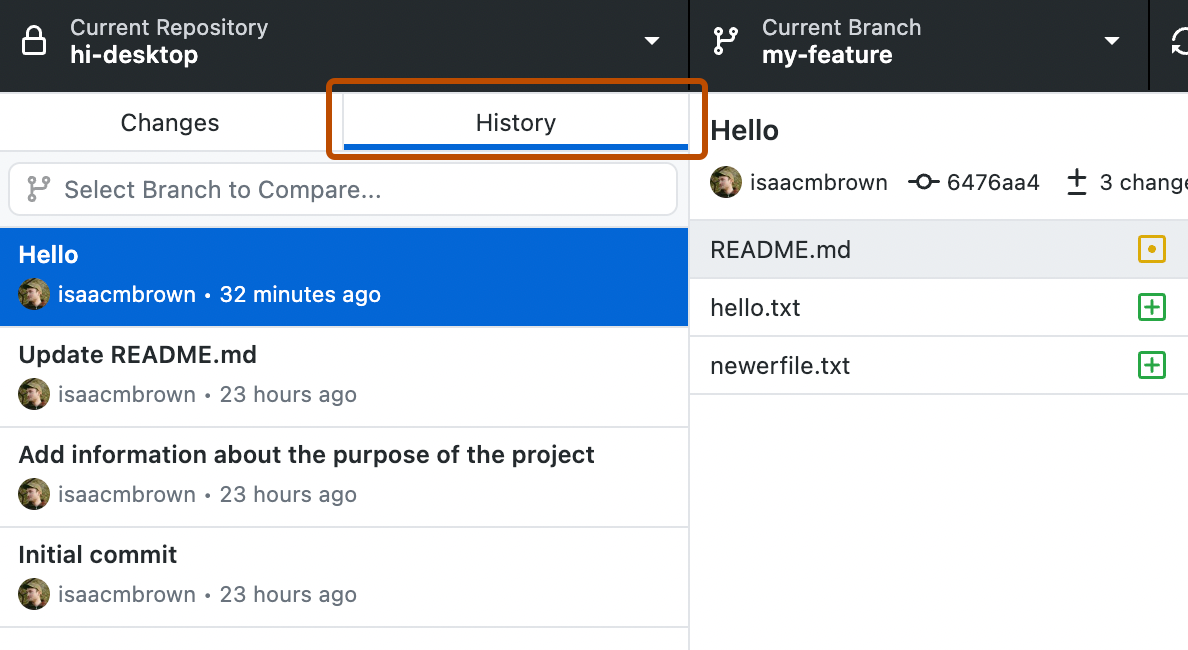
  1. In the left sidebar, click History.

    Screenshot of the "History" tab in the sidebar. Above a list of commits, the tab button, labeled "History", is highlighted with an orange outline.

  2. Right-click the commit you want to revert and click Revert Changes in Commit.
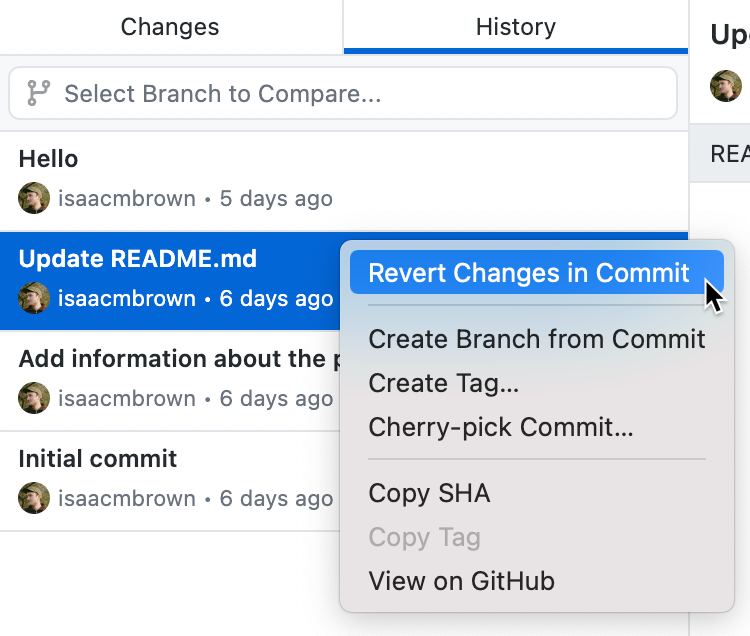
    Screenshot of a list of commits in the "History" tab. The cursor hovers over the "Revert Changes in Commit" option in a context menu.

Further reading